
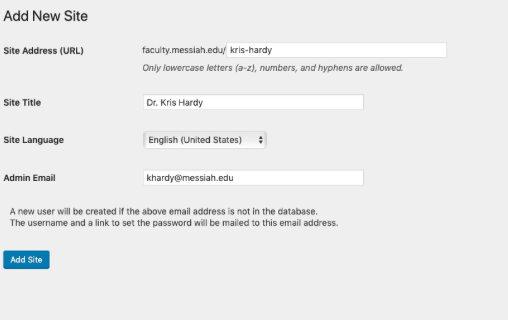
Step 1 - Create a new site here.
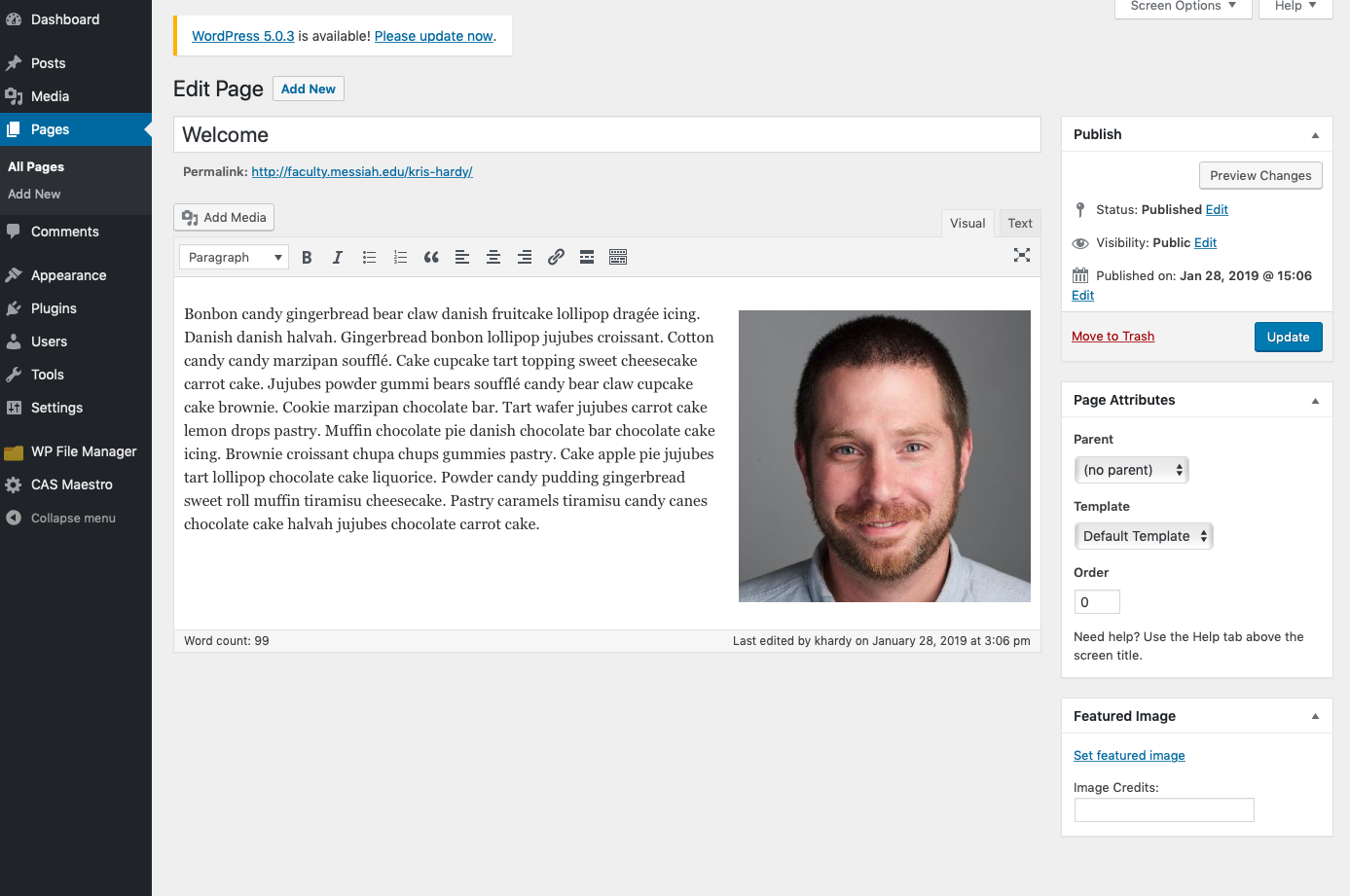
Step 2 - Visit site a create a homepage under ‘pages’ and click ‘publish’.
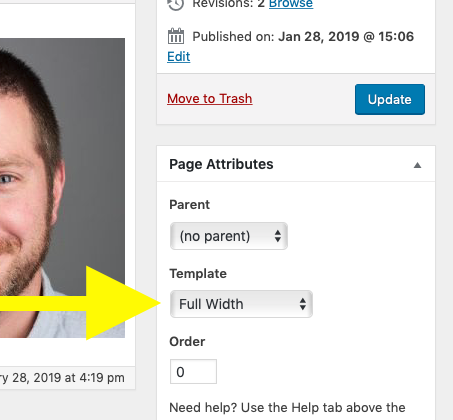
*It's recommended to use the 'full width' template to simplify the page.
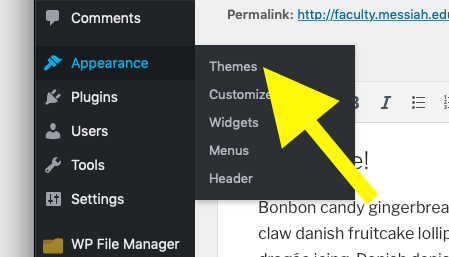
Step 3 - Hover over ‘appearance’ and click ‘themes’
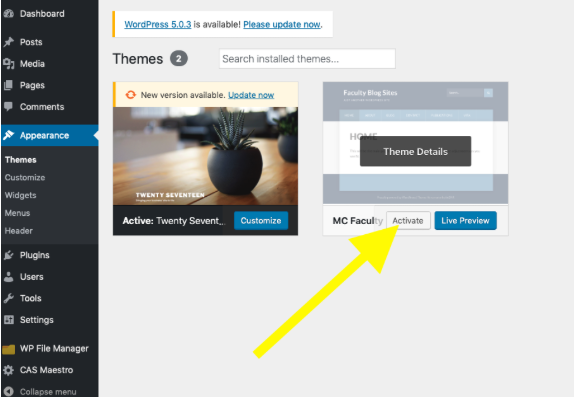
Step 4 - Hover over ‘MC Faculty Site’ from the list of themes and click ‘activate’.
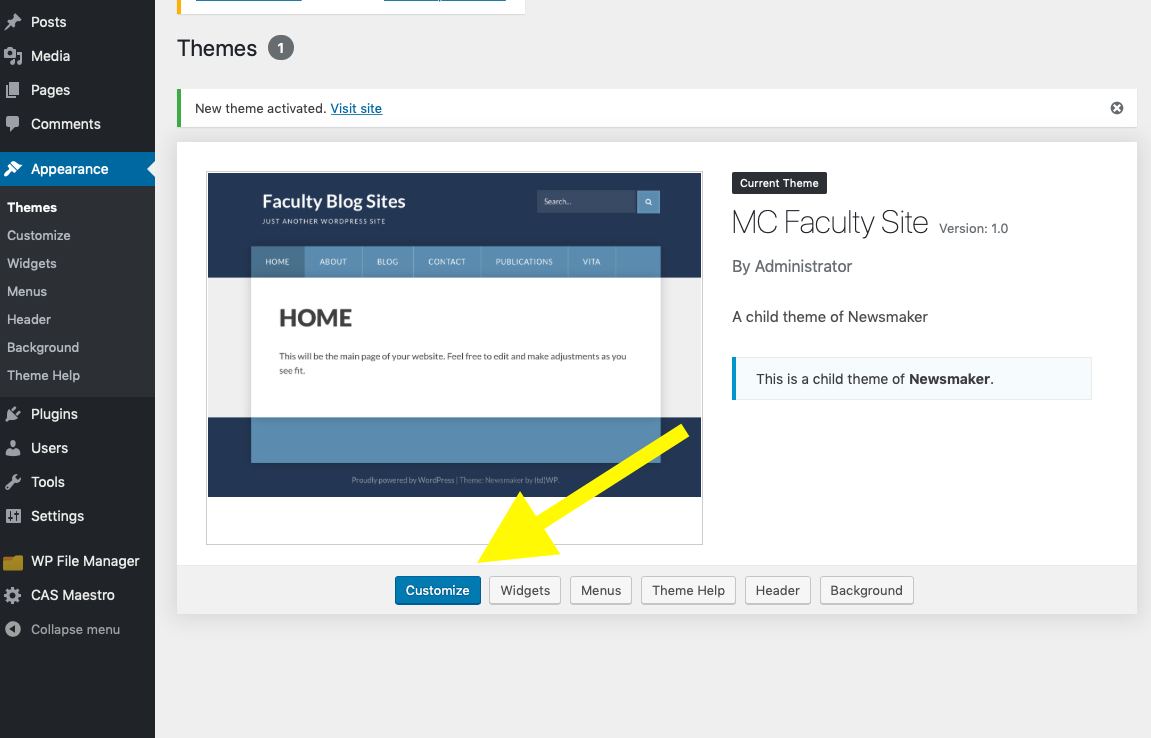
Step 5 - Click ‘customize’
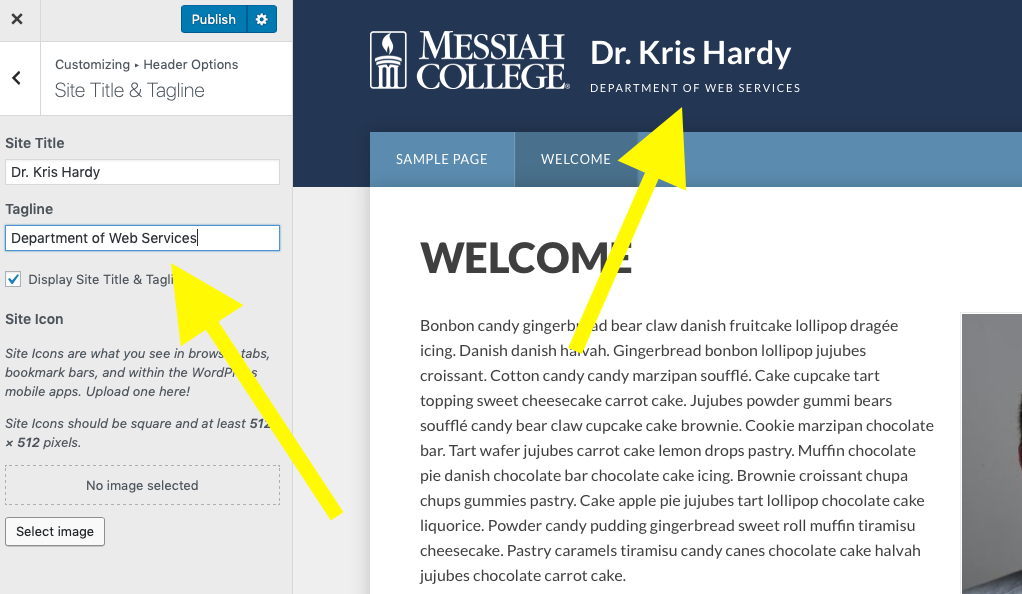
Step 6 - By default the site tagline is ‘just another faculty blog sites’. You can remove the tagline all together or update the content by clicking ‘header options’ > ‘site title and tagline’.
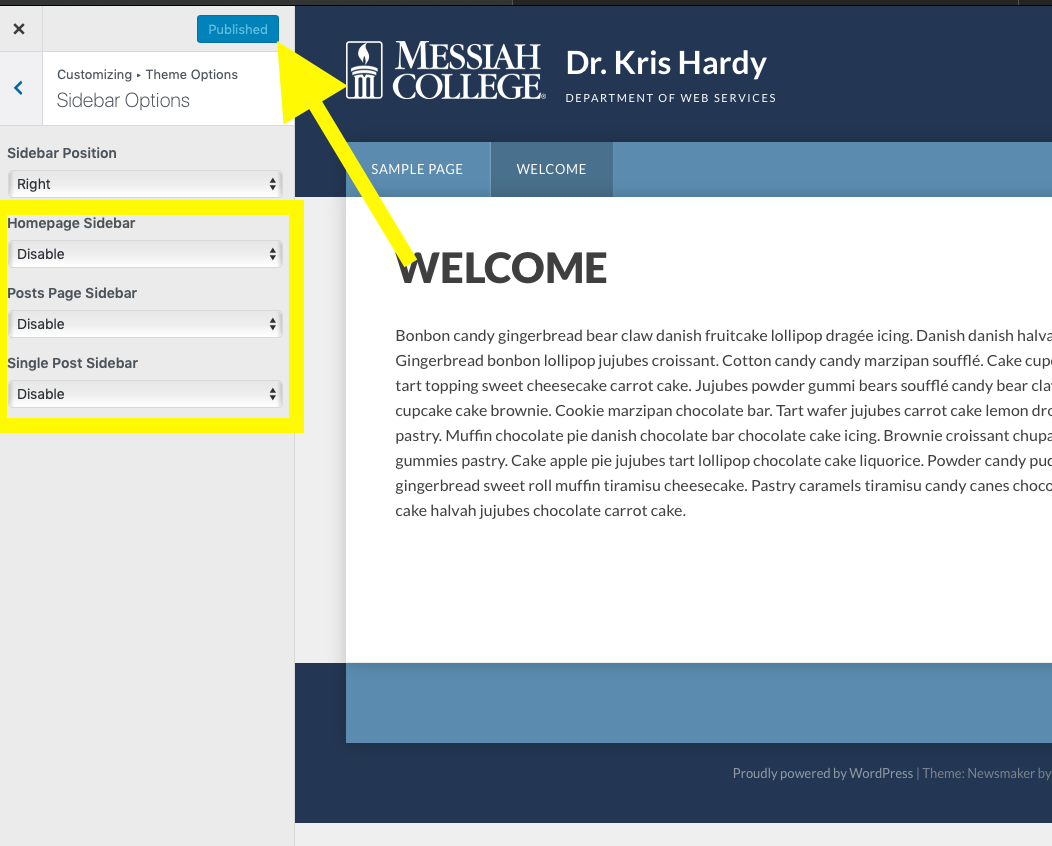
Step 7 - It’s recommended to disable sidebars to simplify the layout. To do this, click ‘theme options’ > ‘sidebar options’ > then click ‘publish’ (no need to modify settings).
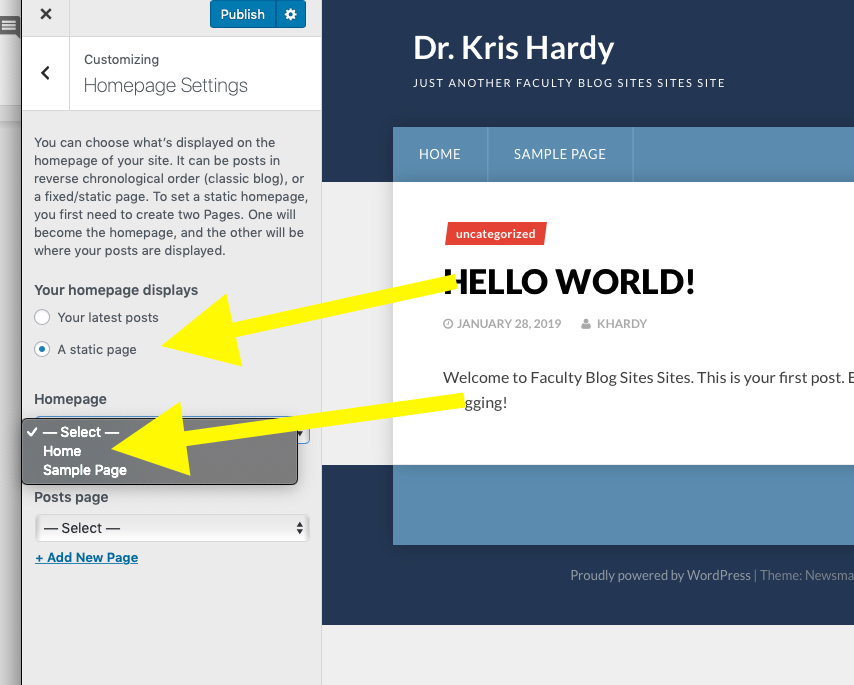
Step 8 - Set homepage by clicking ‘homepage settings’ and selecting ‘static page’ then selecting the homepage that was created during step 2 above. Then click ‘publish’ at the top of the modal box.
Comments
0 comments
Please sign in to leave a comment.